How Fusion Sprites Work: Custom Sprites in Pokemon Infinite Fusion
How do fusion sprites actually work in the game? Every pokemon infinite fusion custom sprites question has the same short answer: every fusion’s look comes from one of two places, an auto-generated sprite from Japeal’s fusion generator or a hand-drawn custom sprite made by a community artist. The head Pokémon sets the colors and pattern, the body sets the shape, and if the fusion preview shows a green tint, that combination has a custom sprite waiting. This guide explains the full two-tier sprite system in version 6.7.2: where custom sprites come from, how to install the monthly sprite packs, how to preview both orders before you fuse, how to browse every custom sprite without playing, and what to do when a sprite looks wrong.
Quick note: pokemon-infinitefusions.site is an unofficial fan guide. We are not affiliated with Nintendo, Game Freak, or the creators of Pokémon Infinite Fusion.
Every fusion sprite comes from one of two places
There are roughly 175,000+ possible fusion combinations in the current roster era, and no art team on earth could hand-draw all of them, so the game uses a two-tier system. The bottom tier is the auto-generated sprite: when no custom art exists for a pairing, the game builds a sprite automatically from the two parents’ parts using the same approach as Japeal’s Pokémon Fusion Generator, the web tool that inspired the entire game. These autogen sprites cover every possible combination, which means you never fuse blind, but they are visibly rough: odd scaling, flat colors, and missing detail are the norm, not the exception.
The top tier is the custom sprite: a hand-drawn replacement created by a community artist. Thousands of these are drawn every week on the game’s Discord server, and the base game ships with a quality-controlled collection of the best ones plus an auto-downloader that fetches art for sprites you do not have yet. When custom art exists for your exact pairing, the game shows it instead of the autogen version, and the difference is night and day: proper shading, coherent anatomy, and little jokes and references the spriters hide in the designs. Understanding which tier your fusion falls into, and how to move a pairing from the bottom tier to the top one, is what this guide is really about.
One thing to clear up first, because several download sites get it wrong: the current released version is 6.7.2 (October 2025). If a site claims 6.8.2 is out, that version is unreleased and its changelog is undated on the wiki; sprite behavior described here matches 6.7.2. Our guide to how fusion works covers the DNA Splicers and head/body mechanics; this guide is only about what the fusions look like.
The head-and-body rules behind every sprite
Sprite generation follows the same head/body split as the battle mechanics, and the Fandom wiki’s Fusion FAQs state the rule plainly: the head Pokémon determines the color palette and pattern, while the body supplies the shape. Community spriters build custom sprites the same way the game builds autogen ones: they take the body’s sprite as the base, add the head’s features, and recolor everything in the head’s colors. That is why the same two Pokémon can look completely different depending on the order.
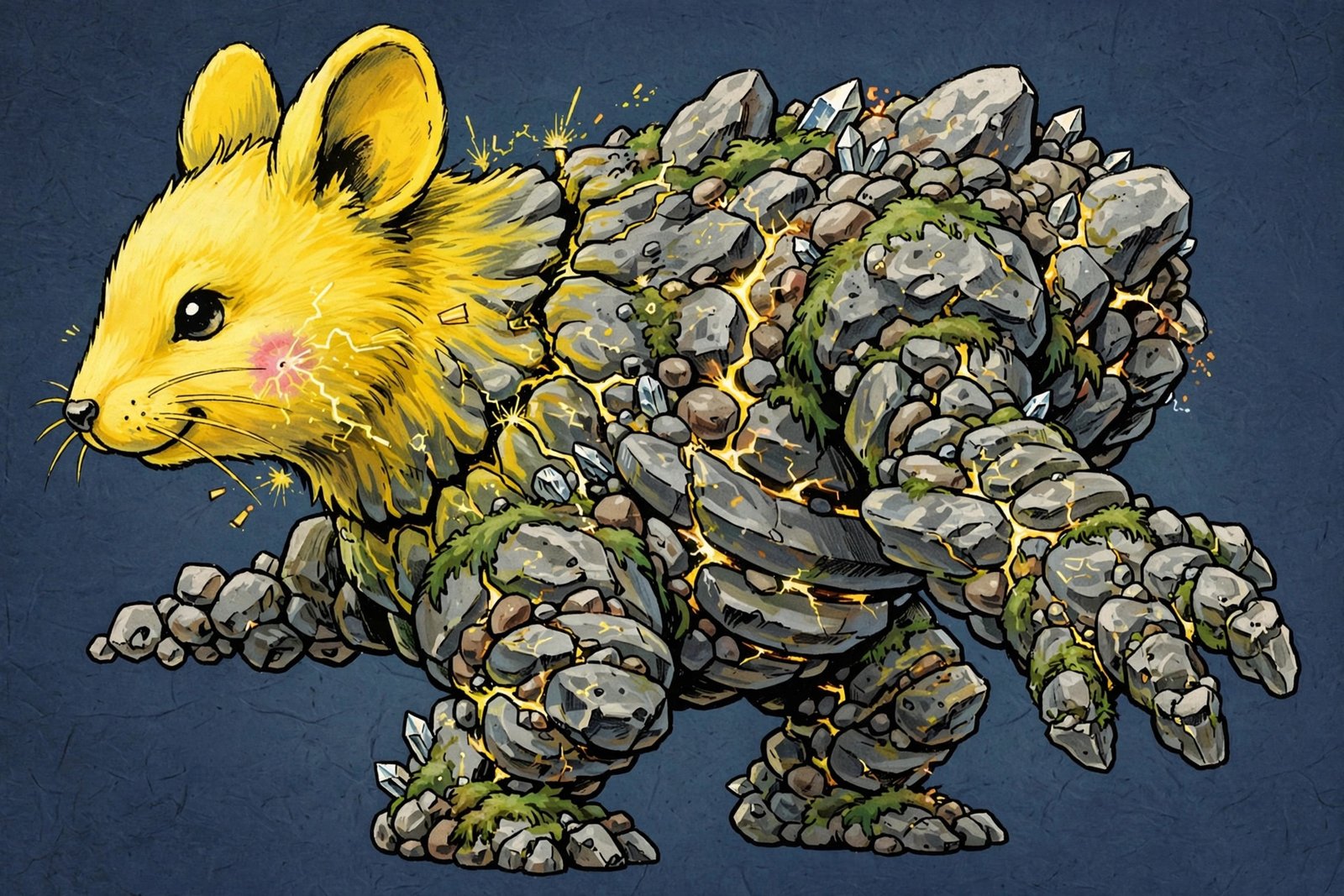
A concrete example makes this click. Fuse a yellow electric type as the head with a gray rocky body and you get a yellow-tinted rocky creature with the electric type’s ears and face markings. Reverse the order and you get a gray rocky head’s features, horns, eyes, and expression, on a yellow body, with the electric yellow washing over the whole design. Same parents, two different creatures, and the color story flips completely. This is also why the fusion calculator matters for sprite hunting as much as for typing: the preview shows you both orders before you spend a splicer, and the order you pick is the sprite you keep.
The Ditto fusions are the famous edge case here. Because Ditto’s head is a blank pink blob and its body is a featureless blob shape, Ditto pairings produce some of the strangest sprites in the game: the Mr. Mime/Ditto fusion is widely cited as one of the most unsettling custom sprites ever drawn, and several Ditto fusions reference the Among Us crewmate designs. Our Ditto fusions guide covers the battle mechanics; the sprites are worth the visit on their own.
What the green tint in the fusion preview means
When you open the fusion menu and select two Pokémon, the game shows you previews of both orders before you commit. Two details in that preview tell you everything about the sprite tier. First, if you have never seen a fusion before, its preview appears as a silhouette, so you are choosing the order without seeing the result. Second, and this is the part no guide explains properly: Pokémon with custom sprites get a green-tinted preview. That green tint is the game telling you, before you spend anything, that this exact combination has hand-drawn community art waiting.
The green tint is the single most useful piece of sprite information in the game, and most players walk past it. If you care what your fusion looks like, and plenty of players fuse specifically for the sprite, the workflow is: open the fusion menu, check both order previews, and look for the green tint on each. A green-tinted order means custom art; a plain preview means you get the autogen sprite. Since the order also changes typing and stats, the green tint sometimes breaks ties: when both orders are viable in battle, pick the one with the custom sprite. Previewing is free, fusing is not.
There is a second preview worth knowing about: the Pokédex. When you register a new fusion to the Pokédex, by fusing, evolving, hatching, or reversing, a sprite select page opens automatically, and custom dex entries appear with a green tint there too. That page is also where you swap between alternate sprites, which we will come back to. The pattern is consistent everywhere in the game: green means custom.
Where Pokemon Infinite Fusion’s custom sprites actually come from
Custom sprites are not made by the game’s developer. They are drawn by players, on the official Discord server, in staggering volume: the Fandom wiki’s Custom Sprites page describes thousands being made every week, with anyone able to submit work for feedback in the spritework channels and apply for the Spriter role. This is a genuine community art pipeline, not a tip jar: sprites go through critique, revision, and a quality bar before they ship in the official packs.
The pipeline has three stages worth understanding. Creation happens on Discord, where artists claim pairings, post work-in-progress shots, and take feedback. Selection happens through community voting: when multiple sprites exist for one pairing, the community votes for the main sprite in the #main-sprites-voting channel, and the runners-up become alternate sprites rather than being discarded. Distribution happens through monthly sprite packs uploaded to the Discord #downloads channel, which the game also mirrors through its auto-downloader. Because the voting never really stops and artists keep drawing, the custom sprite collection grows every single month.
Artists get credited, and the credit system is more thorough than most players realize. Credits come from a community-maintained credit file that artists can claim and correct through Discord, and the game surfaces those credits in changelogs, on the DNA Reverser screen, and on evolution screens. If you have ever wondered who drew the sprite on your favorite fusion, the answer is stored in the game, attributed to a real community artist. That attribution is part of why the pipeline works: drawing a sprite that ships in the official pack, with your name on it, is genuine portfolio material.
Installing custom sprite packs in Pokemon Infinite Fusion the right way
Getting custom sprites into your game is a file operation, not an in-game unlock, and doing it in the right order saves headaches. First-time installers should grab the “Full” pack from the Discord #downloads channel: it contains the complete quality-controlled collection, so every custom sprite the community has approved is on your machine from the start. Point your browser at the official Discord rather than third-party download pages, several of which bundle outdated packs or push unverified “revamped” editions.
Extract the pack into the game’s CustomBattlers folder, specifically the “Sprites to import” directory inside your Infinite Fusion installation’s Graphics folder. The sprite files are 288×288 PNGs named by national dex number in [head].[body].png format, for example 252.12.png, and the game reads them from that folder on launch. Monthly update packs go into the same place; they only contain new and changed sprites, so they are small. If a sprite you expected is not showing up, the most common cause is extracting to the wrong folder level: the PNGs need to sit where the game looks, not in a nested subfolder your archive tool created.
You do not have to manage all of this by hand. The game includes an auto-downloader that fetches art for sprites you lack, and since version 6.5.0 the game prompts you to download new sprite packs when they release, so staying current is mostly a matter of saying yes. The auto-downloader had bugs in earlier versions (fixed across the 6.4.x patches), which is one reason to be on 6.7.2: sprite delivery is reliable there. If you are installing the game fresh, download Pokémon Infinite Fusion 6.7.2 first, then add the Full sprite pack before you start fusing, so your very first fusion preview already shows custom art where it exists.
Browsing every custom sprite without fusing
You do not need to spend splicers to window-shop. The best browsing tool is FusionCalc’s All Sprites grid, which shows the custom sprite for essentially every pairing with filters by head Pokémon, body Pokémon, artist, type, and even moves and abilities; sprites from the most recent pack carry a “New” badge, which is a fun way to see what the community just finished. The FusionCalc FAQ is also the clearest English explanation of the two-tier system: custom art where it exists, autogen from Japeal’s generator everywhere else, with the note that Japeal’s tool is basically the reason Infinite Fusion exists.
A second option is the Custom Sprite Dex on infinitefusiongenerator.com, which covers versions 1 through 7 with its own browsing interface and a solid FAQ on getting the packs into your game. And the third option is the game itself: the in-game Pokédex sprite select page, which opens whenever you register a new fusion, lets you flip through a pairing’s main sprite and all of its alternates. For looking up which species even have custom art, our Infinite Fusion Pokédex and the Pokémon fusion tool both show sprite previews per pairing.
A practical browsing workflow: when you are deciding between two orders for a fusion, check both in FusionCalc first, note which orders carry custom art, then confirm in the game’s fusion preview with the green tint before you commit the splicer. Five minutes of browsing saves the regret of fusing the plain-looking order when the beautiful one was one tap away.
What happens to sprites when the game updates
Sprites are not frozen when a new version releases; they are a living collection, and updates touch them in three ways. First, the bundled sprite sheets refresh: version 6.4.5 refreshed the in-game sheets to the latest pack, and each release since has shipped the current approved collection. Second, re-downloading the monthly packs updates changed sprites: when the community votes a new main sprite for a pairing or an artist revises their work, the new art ships in the next pack, and extracting it overwrites the old file. Third, the auto-downloader fills gaps for sprites added between your pack downloads.
The question players actually ask is whether updating changes the look of fusions they already made. The honest answer has two parts. Your fused Pokémon’s data never changes: its stats, typing, and moves are untouched by sprite updates. But the art displayed for that pairing can change when you install a newer pack, because the game renders the current sprite file for the pairing, not a snapshot from when you fused. In practice this is an upgrade, the new art is usually better, but if you are attached to a specific old sprite, back up the PNG before updating the pack. Pin your expectations to 6.7.2 and the monthly packs, and ignore any site claiming a newer version with different sprite behavior: 6.8.2 is unreleased.
When a sprite looks wrong
Three sprite problems come up repeatedly, and all three have boring, fixable causes. Problem one: you see the autogen sprite even though custom art exists. This is a pack problem, not a game problem: your sprite pack is missing or outdated, the PNGs landed in the wrong folder, or the auto-downloader has not fetched that pairing yet. Fix it by re-downloading the current Full or monthly pack from the Discord #downloads channel and re-extracting carefully, then restart the game so it re-reads the sprite folder.
Problem two: a sprite looks glitchy or half-loaded on a calculator site. Web tools render the same two-tier system, and a glitchy sprite usually means the tool’s cache has not picked up the newest pack or the pairing genuinely has no custom art yet and you are seeing the autogen fallback at its worst. Check the same pairing in FusionCalc’s All Sprites grid: if it shows autogen there too, the custom sprite simply does not exist yet, and no reinstall will conjure it.
Problem three: a fusion you liked changed appearance after an update. As covered above, newer packs overwrite older art, and community votes occasionally crown a new main sprite. If you preferred the old one, the old PNG is still the alternate sprite in most cases: open the Pokédex sprite select page for that fusion and swap to the alt. The voting runners-up are not deleted; they become the alternates, named [head].[body]a.png, b, c, and so on, up to a large cap per pairing. Your favorite look is usually still in the folder.
Fusion sprite questions, answered
Do all fusions have custom sprites?
No. Custom art exists for a large and constantly growing subset of pairings, with thousands of new sprites added every month, but the total combination count is far larger than what artists have covered. Every other pairing uses the auto-generated sprite from Japeal’s generator. The green-tinted preview in the fusion menu tells you which tier your pairing is in before you fuse.
What does the green tint mean in the fusion preview?
It means that exact combination has a hand-drawn custom sprite. The tint appears in the fusion menu preview and in the Pokédex sprite select page. No green tint means the game will show the auto-generated sprite. When both orders are viable in battle, many players pick the green-tinted order for the better art.
How do I get custom sprites in Pokemon Infinite Fusion?
Download the sprite packs from the official Discord #downloads channel, grab the “Full” pack if it is your first time, and extract the PNGs into the “Sprites to import” folder inside the game’s Graphics/CustomBattlers directory. The game’s auto-downloader also fetches missing sprites on its own, and version 6.5.0 and later prompt you when new packs release.
Can I change a fusion’s sprite after fusing?
Yes, within limits. Open the Pokédex entry for the fusion and use the sprite select page to swap between the main sprite and its alternates; runners-up from community votes live on as alts. You cannot change the head/body order without a DNA Reverser, and you cannot invent art that does not exist, but you can always pick your favorite of the available looks.
Will updating the game change my fusions’ sprites?
It can change the displayed art, because the game renders the current sprite file for each pairing and newer packs overwrite older files. Your fusions’ stats, typing, and moves are never affected. If you love a specific old sprite, back up its PNG before installing a new pack; the old art usually survives as a selectable alternate.
Who draws the custom sprites?
Community artists on the official Discord server, working through public critique channels and a Spriter role application process. Credits are tracked in a community-maintained credit file and surfaced in the game’s changelogs and on screens like the DNA Reverser. Thousands of new sprites ship every month through the monthly packs.
The honest bottom line on fusion sprites
Pokemon infinite fusion custom sprites are the community’s signature contribution to the game: thousands of hand-drawn replacements, voted on and credited in public, layered over an auto-generated fallback that guarantees no fusion ever looks broken. The whole system rewards one habit: preview both orders, watch for the green tint, and browse before you fuse. Install the Full pack from the Discord #downloads channel, keep it updated with the monthly packs, and use the Pokédex sprite select page to pick your favorite alternate when a pairing has several. The autogen tier means every combination works; the custom tier is why people fuse for fun.
And keep your facts straight when other sites do not: the current version is 6.7.2, custom art ships in monthly packs rather than with every game update, and green means custom everywhere in the game. If you are setting up fresh, download Pokémon Infinite Fusion 6.7.2, add the Full sprite pack, and your first fusion preview will already show you which pairings the artists have blessed.
Sources: sprite pipeline, pack installation, voting, naming, and credit facts from the Infinite Fusion Fandom wiki (Custom Sprites); head/body palette rules, green-tinted previews, silhouettes, and DNA Reverser details from the Fandom wiki (Fusion FAQs); autogen origins, monthly pack cadence, and the All Sprites grid from the FusionCalc FAQ.